
2026-09-27
Customized In-house Installment Plans
More control on the installment plans you can offer to your customers
Riyadh, Saudi Arabia — Stream today announced customized in-house installments that help Merchants tailor their in-house installment plans to suit both their business needs and those of their customers.
Summary
Who it’s for: Merchants looking to customize in-house installment plans for their customers.
What’s new:
Two new capabilities:
Ability to collect an immediate payment (down payment) and defer remaining installments to a specific, later date.
Finer control over which installment plan options to offer to each customer for every invoice and payment link you send.
Why it matters: Streamlines and automates the process for Merchants to better tailor their in-house installment plans for their customers; more flexible scheduling and the ability to collect both a down payment and subsequent installments without issuing separate invoices.
Availability: Live now for both Stream App users and API users.
New Capabilities
With today's launch, Merchants can now:
Offer installment plans where a down payment (the first installment) can be collected immediately while deferring the following installments to a specific date in the future.
Example use case: Request your customer to book their seat for an education course set to start at the beginning of next year by paying a down payment now and defer their remaining installments until the course starts.
Cherry-pick a custom installment plan (called Override plan) for a subset of your customers to offer either a more restricted or more flexible plan for the same products. Example use cases:
Offer different installment lengths (6 vs 12 months) to different tier customers: Gold tier customers get up to 12-months installment plans whereas Silver tier customers get the default installment plan which only allows up to 6 months.
How-To Guides
Set Up a New Plan with Down Payment
Go to Settings → Payment Methods.
Enable “Installments” as a Payment Method if not already enabled:
Choose between “Invoices” or “Payment links” and click on “Add a new installment plan” in the Installments section.
Specify the invoiced amount range (From <X> To <Y>) applicable to this installment plan.
Enable the “Collect down payment” toggle highlighted in red below:
Enter the down payment amount to be collected at the due date of the invoice or the payment link.
Specify the installment splits, either by number of installments or by amount, for the remaining amount to be collected after the down payment.
Click on “Create a plan” to save the new plan.

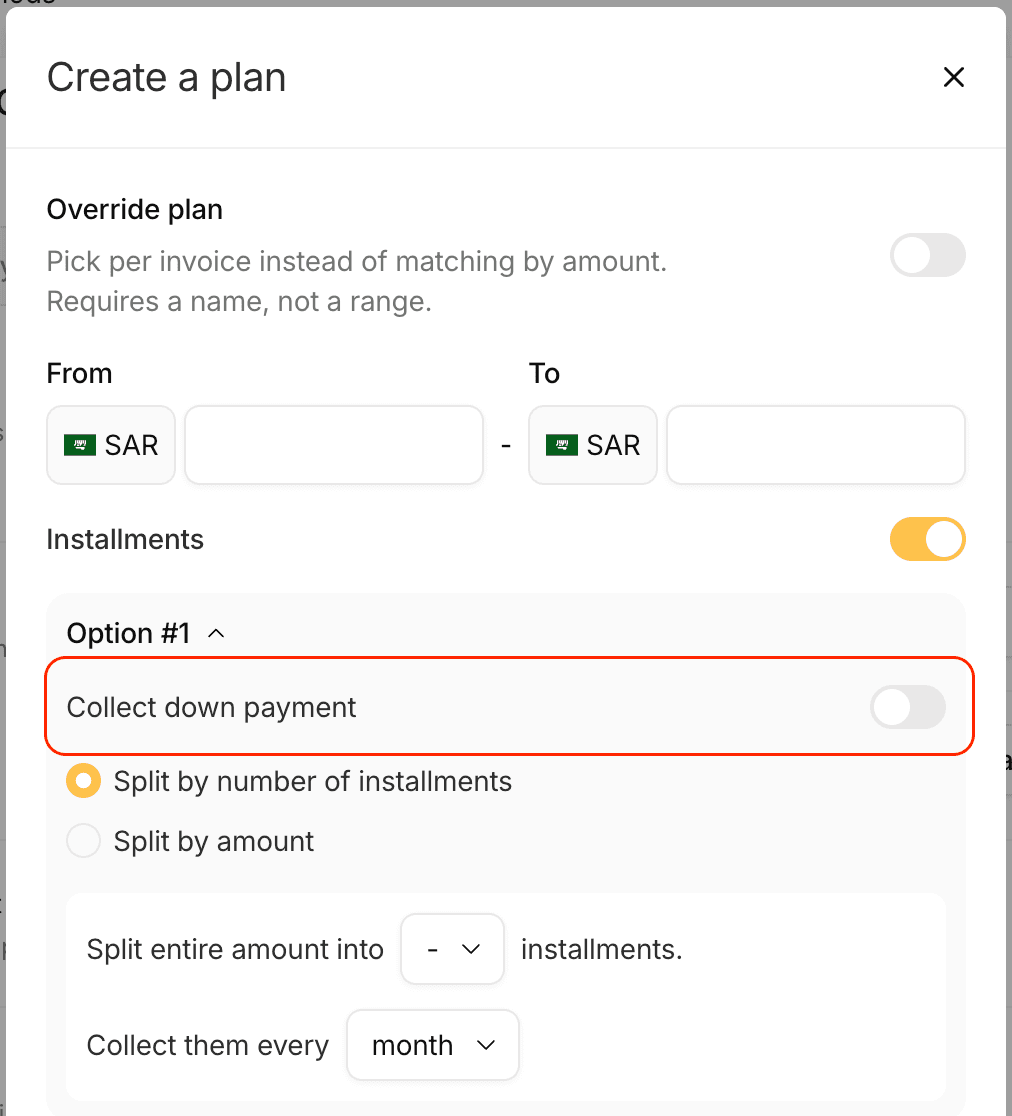
Once saved, newly created invoices and payment links with totals that fall into the entered amount range will be associated with the new down payment installment plan.
Create Invoice with Down Payment Installment Plan
Note: The steps below apply to payment links as well.
Click on the “+Create” button in the top-right of the Stream App and click on Invoice.
Select the Customer and Product(s)
Note: ensure that the invoice total falls into the range specified for the down payment installment plan.
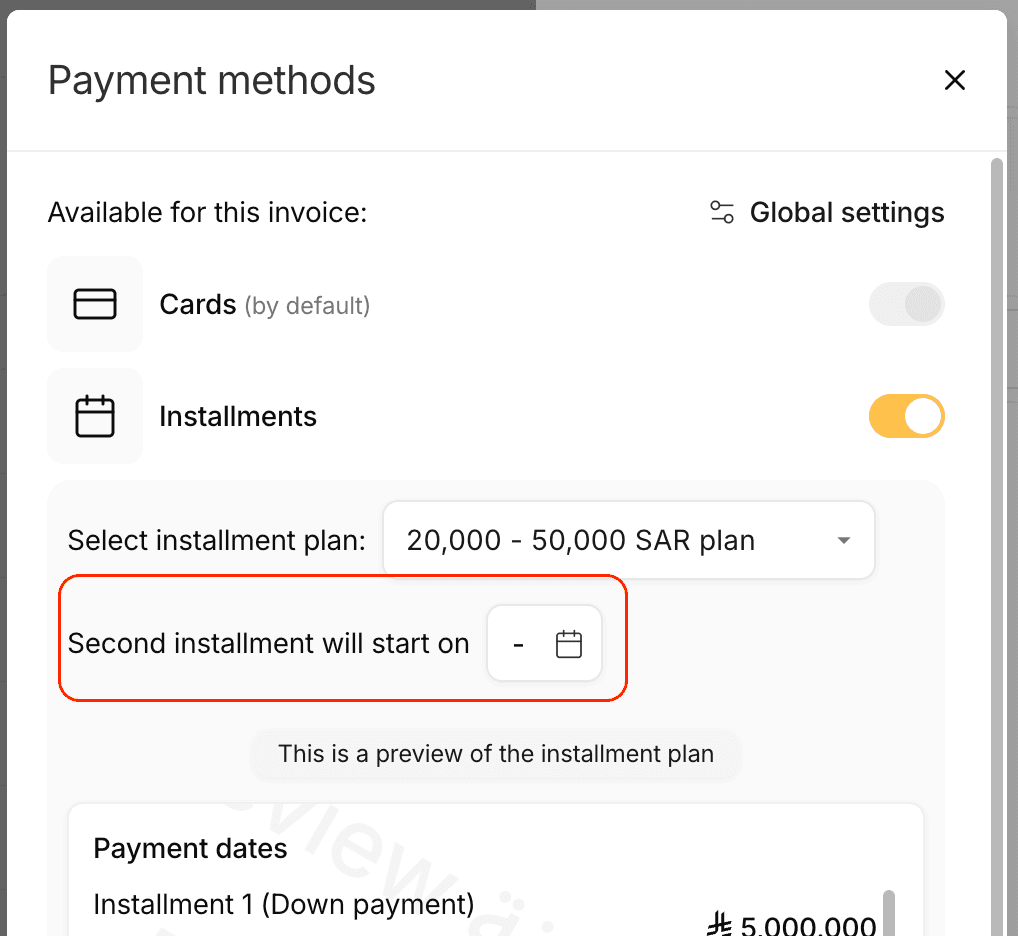
(Optionally) Change the date when the second installment is due:
Click on “Manage payment methods”.
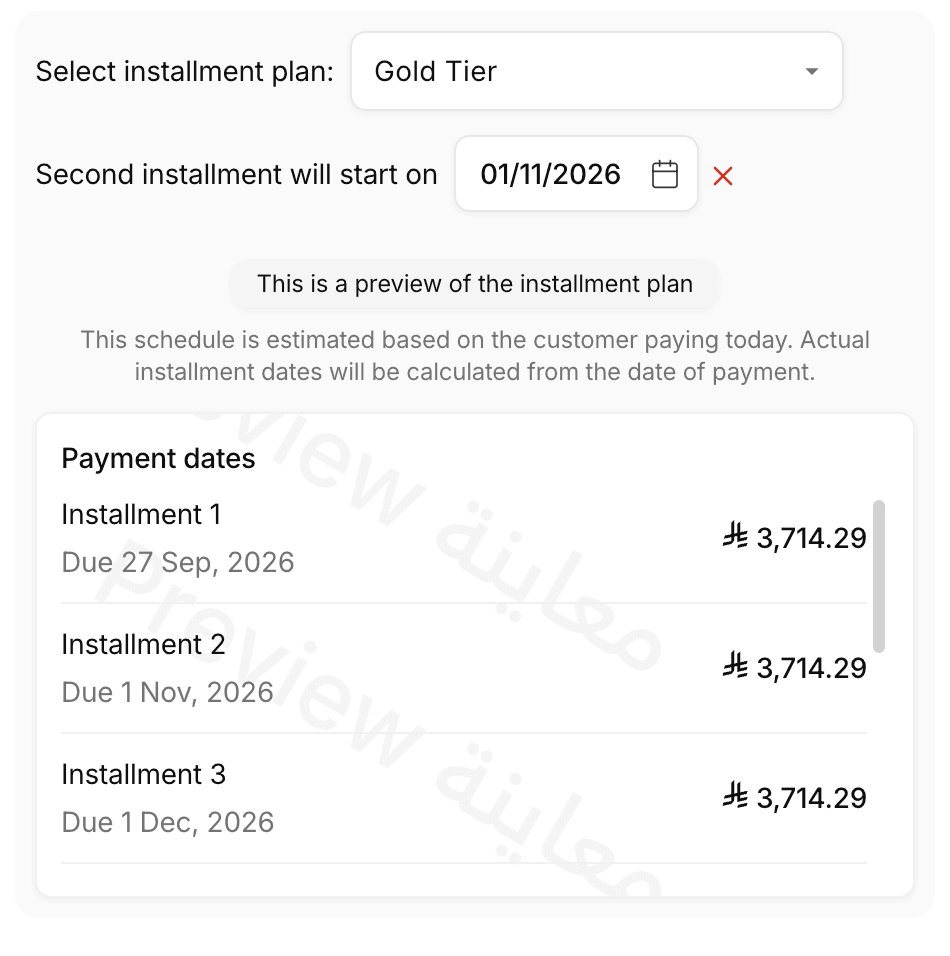
The following dialog appears. Set the date highlighted below in red:
c. The dates of the second, third, etc installments in the installment plan preview will change accordingly.
d. Save the changes made.
Click on “Create Invoice”.
Create a Named (Override) Installment Plan
To offer a customized plan for a specific set of customers, for instance for your Gold Tier customers, do the following:
Go to Settings → Payment methods.
Click on “Add a new installment plan”.
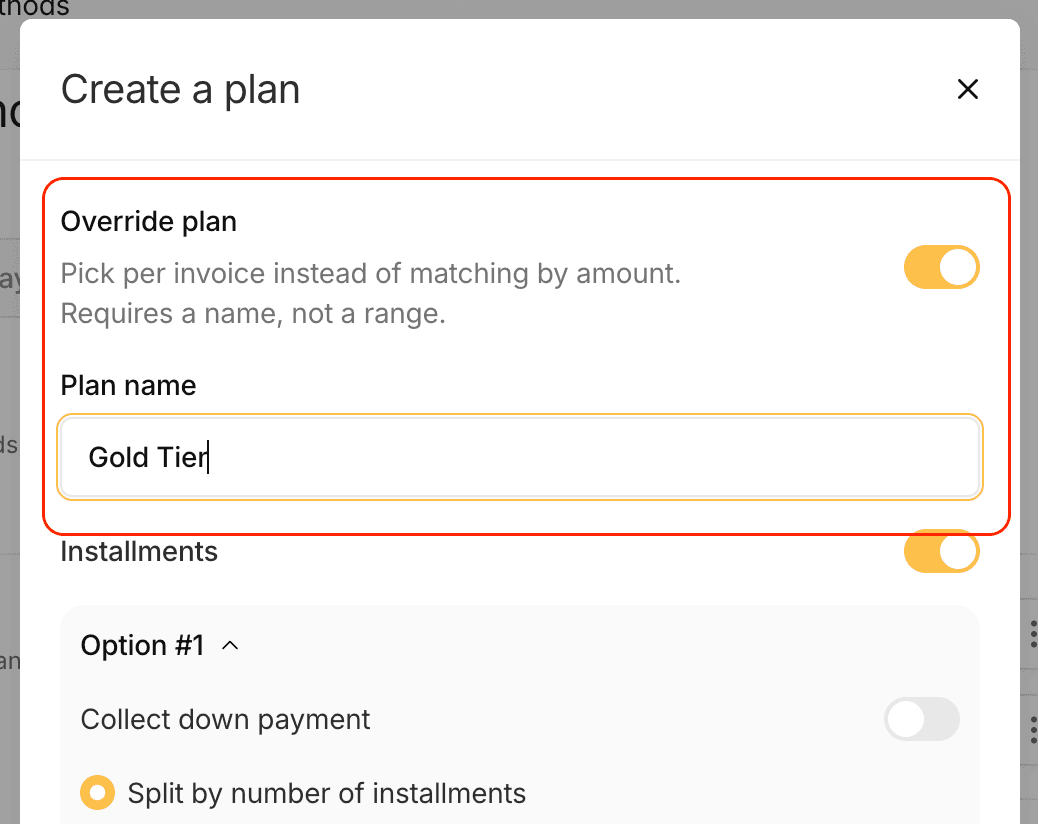
Enable the “Override plan” toggle as shown below in the “Create a plan” and enter “Gold Tier” in the text box as highlighted below:
Configure the installment plan as needed and save it.
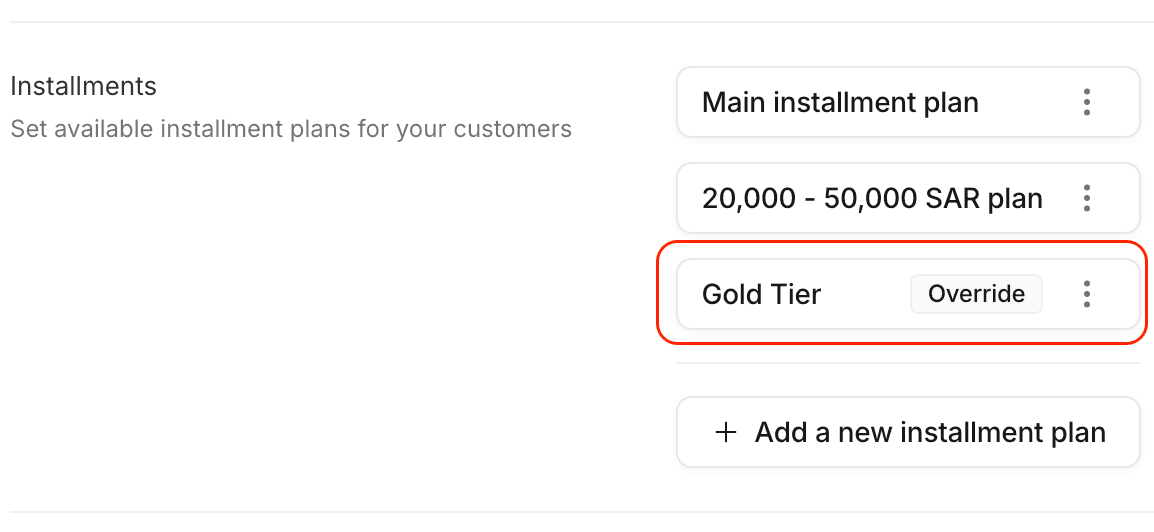
The newly created plan should be listed with the other installment plans with a special flag (Override) as highlighted in red below:
Choose an Override installment plan for a payment link
Note 1: The steps below apply to invoices as well.
Note 2: Follow the steps to create an override installment plan before starting these steps.
Click on the “+Create” button in the top-right of the Stream App and click on Invoice.
Select the Customer and Product(s).
Click on “Manage payment methods”. Switch on the “Installments” toggle if not already set.
In the Payment methods dialog, click on the “Select installment plan:” drop-down menu (highlighted below in red) and select “Gold Tier”
Click on Save.
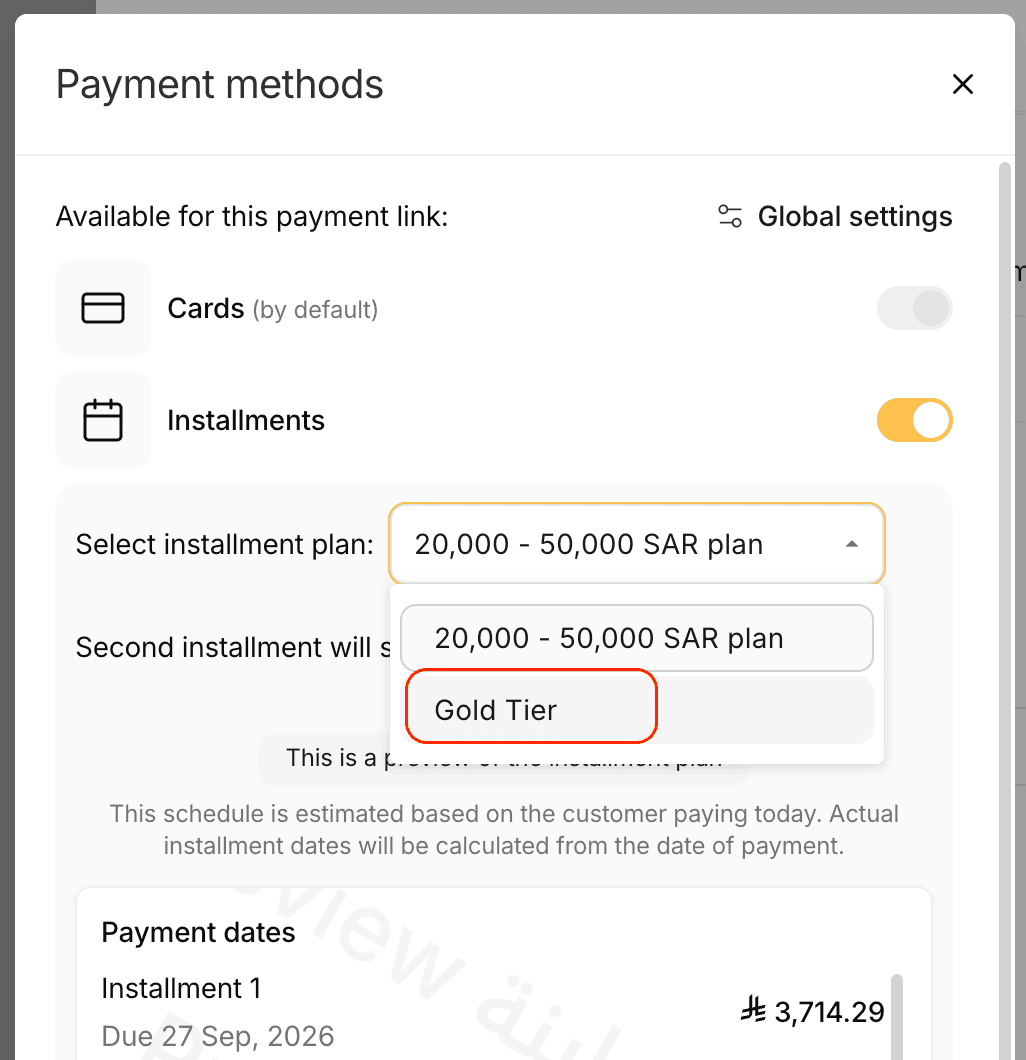
This will replace the original installment plan with the “Gold Tier” installment plan.
Frequently Asked Questions
Q: Can I offer customized installment plans to customers in bulk?
Yes, to do that, you can do the following:
Click on the “+Create” button in the top-right of the Stream App and click on Invoice.
Choose “Multiple”.
Upload a CSV file with the invoices you want to send out.
Click on “Manage payment methods”.
Select the override plan you plan to use.
Save your selection and then proceed with creating the payment link or invoice.
Q: How do I view what installment plan is selected for my customers when I am creating a payment link or invoice?
In the main invoice or payment link creation dialog:
Click on “Manage payment methods”.
Toggle on “Installments” if not already on.
The dialog should display a preview of the installment plan that will be offered to the customer as shown below:
Q: I created an override installment plan but I don’t see it as an option when I create a payment link. What should I do?
Payment links and invoices each have their own sets of installment plans. First, confirm that the override plan you created was for payment links:
Go to Settings → Payment methods.
Toggle to Payment links.
Navigate to the Installment Plans section.
In some cases, your installment plan might be folded under the “View all plans”.
Check if the plan is listed as expected.
In case you are still running into issues, please navigate here to contact Stream Support.
Q: I’m an API user, how do I use an override plan?
You first need to get the override plan’s universal unique identifier (UUID). Below are the steps:
In the Stream App, go to Settings → Payment methods
Navigate to the “Installment Plans” section.
Click on the ellipsis (three vertically aligned dots) next to the override plan name and click on “Copy ID” as highlighted in a red box below:
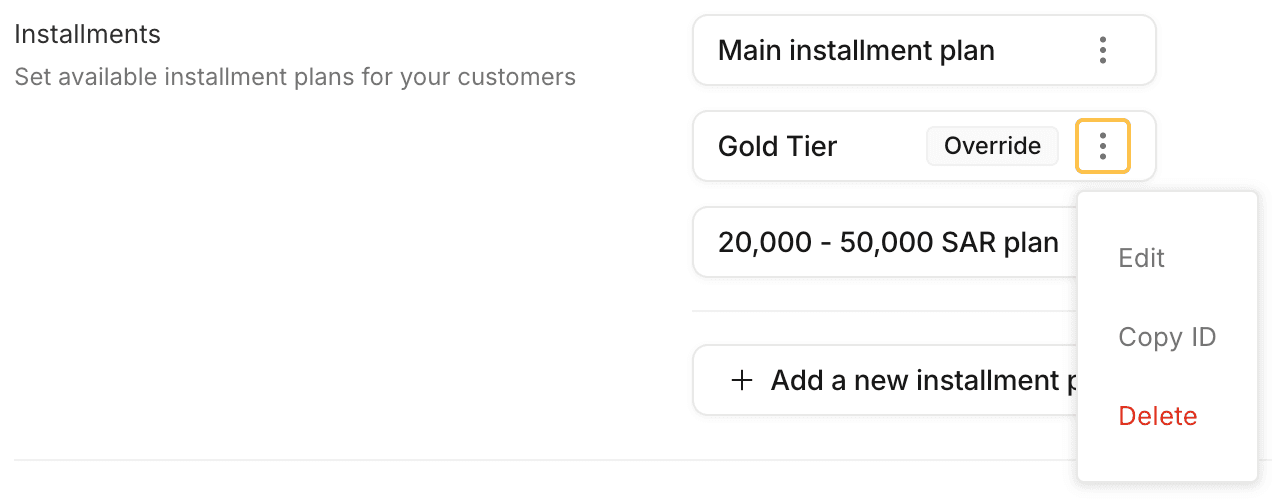
This action copies the installment plan’s UUID to set the installment_rule_override_id value in the “Create Payment link” API method. For more details, refer to this URL.