Accept Samsung Pay through your payment link
Send a Stream invoice or payment link and let customers use a card in Samsung Wallet. They choose Samsung Pay and confirm on a compatible device. You track payments from your dashboard.
Stream charges 0.8%, plus payment processing fees and VAT on fees where applicable. Ask for Samsung Pay pricing for your account. See pricing
Send a link. Let the customer confirm on their device.
- Link with invoice details and payment options
- 1
- Link with invoice details and payment options
- Steps: open the link, choose the wallet, confirm payment
- 3
- Steps: open the link, choose the wallet, confirm payment
- Monthly subscription fees on the pay-as-you-go plan
- 0
- Monthly subscription fees on the pay-as-you-go plan
Payment processing and Stream fees apply under your pricing plan.
What accepting Samsung Pay means
Samsung Pay is the payment option; Samsung Wallet is the app where the customer keeps their cards. Payment requires an issuer-supported card and a compatible Samsung device.
Payment methods available with Stream- Payment type
- Digital wallet using an added card
- App
- Samsung Wallet
- Device required
- A Samsung device compatible with the wallet
- Card required
- An eligible card activated with its issuer
- Starting payment
- Select Samsung Pay at checkout
- Confirmation
- In the wallet on the customer's device, following the prompts
- Collection channels
- Stream invoices and payment links
- Fees
- Stream's 0.8%, plus agreed processing fees
- Automatic renewals
- Subject to payment-method and card compatibility with the plan
- Refunds
- To the original payment method; timing depends on the issuer
Another customer choice in the same collection workflow
Offer Samsung Pay at the relevant checkout and keep service details, customers and payments together in Stream.
Invoice a session, service or order. The customer reviews the amount and selects Samsung Pay when available. You follow the invoice status after payment.
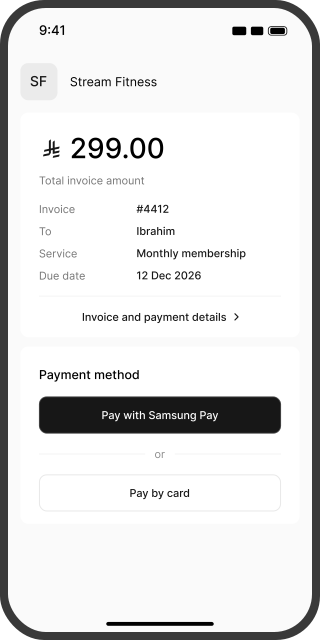
Open the invoice, choose the wallet, confirm payment
Customers do not need the Stream app. Wallet payment requires Samsung Wallet, an eligible card and a compatible device.
- 01
Review your invoice
The customer opens your link and checks the business name, service and amount due.
 02
Choose Samsung Pay
They follow the wallet prompts to connect the payment to their device, then select the card they want to use.
- 03
Confirm on their device
They review and authorize the payment in their wallet. After a successful payment, the customer sees confirmation and you see the transaction in Stream.
Know the collection cost before sending your first link
Stream's pay-as-you-go fee is 0.8% of the payment amount, plus processing fees. Request a breakdown for Samsung Pay and the card used inside it.
| Worked example: a SAR 1,500 payment | Amount in this example | Detail |
|---|---|---|
| Stream fee | SAR 12 (0.8%) | One part of the total fee |
| Samsung Pay processing | Your account and card-specific rate | Added to the Stream fee |
| VAT on fees | Added where applicable | Excluded from this example |
| Net receivable | SAR 1,500 less fees and applicable VAT | Calculated once all charges are known |
The example does not show the total cost of Samsung Pay. Request a quote covering processing, the card used and VAT where applicable. Request a pricing breakdown
Another payment option. A clear service price.
Your business bears payment acceptance fees. Do not add a surcharge because the customer chooses Samsung Pay. Show your service price clearly before payment.
Know where each payment stands
A successful payment confirms the transaction. Arrival in your bank account follows processing and the settlement schedule.
Receiving your funds
Settlements run on Sunday, Tuesday and Thursday after processing is complete and your balance exceeds SAR 100 after fees. Transfer can take up to seven business days once conditions are met; some transactions may need additional review.
Refunding your customer
Request a full or partial refund from the invoice when sufficient balance is available. It returns to the original payment method, with posting time determined by the issuer. Your business bears processing fees, so check the applicable charges before submitting the refund.
Let customers choose a suitable way to pay
| Payment option | How the customer pays | What distinguishes it |
|---|---|---|
| Samsung Pay | With a card added to Samsung Wallet | Confirmation on a compatible Samsung device |
| Apple Pay | With a card in Apple's wallet | Confirmation on a compatible Apple device |
| mada | With a card on the domestic network | A local card-network option in Saudi Arabia |
| Visa | With a card supported by the service | Acceptance depends on card eligibility |
| Mastercard | With a card supported by the service | Acceptance depends on card eligibility |
A wallet uses a card; it does not replace the issuer or card network. Fees and eligibility depend on the card and how it is accepted.
Add Samsung Pay to your checkout experience
New to Stream?
Create your account and submit your business information and required documents. After approval, create an invoice or payment link and review the available methods. Account activation usually takes less than two business days after all documents are submitted.
Already using Stream?
Review the payment settings for invoices and payment links, then check Samsung Pay availability at customer checkout. Test the journey on a compatible device and contact support if you need activation help.
Questions about accepting Samsung Pay
Samsung Pay is the payment option the customer selects. Samsung Wallet is the app that holds their cards and lets them authorize the transaction.
It can also be used online where offered by the website. In Stream, the customer starts from an invoice or payment link and chooses Samsung Pay when available.
Payment needs a Samsung device that supports Samsung Wallet and an eligible card. Running Android alone does not establish Samsung Pay compatibility.
The journey can start in a browser, then continue on a compatible device following the on-screen verification prompts. Completing payment requires the wallet and an eligible card.
Card eligibility depends on the issuer, device and enabled service. Customers should check with their issuer if they cannot add or activate a card in the wallet.
Stream charges 0.8% on pay as you go, plus processing fees and VAT where applicable. Ask for a breakdown for your account and the card used in the wallet.
You can collect through Stream invoices and links without building a complete store or a dedicated app. Your business account must be activated, and the customer needs a compatible wallet and device.
Confirm Samsung Pay and card compatibility with the subscription plan before offering automatic renewal. A successful individual payment alone does not set up later collections.
Check payment status first to avoid a duplicate, then check the wallet, card and connection. If payment cannot be completed, offer another available method and share the invoice reference with support.
Funds return to the original payment method after the refund is processed. Posting time depends on the issuer; a refund-request confirmation in Stream is not the same as receipt of the funds.